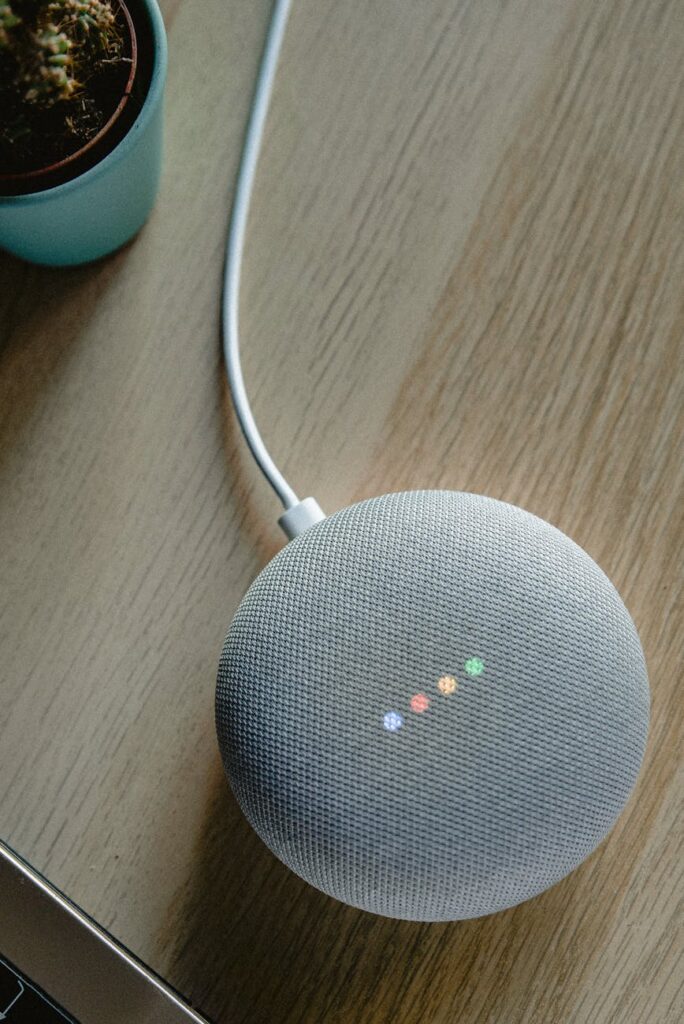
The Google Nest Mini is a versatile and compact smart speaker that makes daily tasks easier through voice commands. Whether you’re setting it up for the first time or looking to maximize its capabilities, this guide will help you get the best experience from your device.
Setting Up Your Google Nest Mini
Step 1: Unbox and Power Up
- Remove your Google Nest Mini from the box.
- Plug it into a power source using the included adapter.
- Wait for the LED lights to indicate that it’s ready to be set up.
Step 2: Download the Google Home App
- Open the Google Play Store (Android) or App Store (iOS).
- Search for and install the Google Home app.
- Open the app and sign in with your Google Account.
Step 3: Connect to Wi-Fi
- Tap the ‘+’ icon in the app and select ‘Set up device’.
- Choose ‘New device’ and follow the on-screen instructions.
- Connect the Nest Mini to your home Wi-Fi network.
Step 4: Link Google Assistant
- Allow voice match to personalize responses.
- Enable Google Assistant to access your calendar, reminders, and more.
- Set preferred music streaming services (Spotify, YouTube Music, Apple Music, etc.).
Essential Google Nest Mini Commands
Basic Commands
- “Hey Google, what time is it?”
- “Hey Google, what’s today’s weather?”
- “Hey Google, tell me a joke.”
Music & Entertainment
- “Hey Google, play my workout playlist on Spotify.”
- “Hey Google, increase the volume.”
- “Hey Google, stop the music.”
Smart Home Control
- “Hey Google, turn off the bedroom lights.”
- “Hey Google, set the thermostat to 22 degrees.”
- “Hey Google, lock the front door.”
Advanced Features & Tips
1. Create Routines for Automation
You can set up custom routines to automate daily activities:
- “Hey Google, good morning” → Reads the news, weather, and traffic updates.
- “Hey Google, bedtime” → Turns off lights and plays calming sounds.
2. Use It as a Bluetooth Speaker
- Activate Bluetooth by saying, “Hey Google, pair Bluetooth.”
- Connect it to your phone, tablet, or computer.
3. Make Hands-Free Calls
- Link your phone number in the Google Home app.
- Say, “Hey Google, call Mom.”
4. Broadcast Messages Across Rooms
If you have multiple Google Nest devices, you can send messages to all of them:
- “Hey Google, broadcast ‘Dinner is ready!’”
Troubleshooting Common Issues
Problem: Google Nest Mini isn’t responding. Solution:
- Check if the microphone is muted.
- Restart the device by unplugging it for 10 seconds.
Problem: Wi-Fi connection issues. Solution:
- Ensure the device is connected to the correct Wi-Fi network.
- Restart your router and try again.
Where to Buy the Google Nest Mini in South Africa
Looking to purchase a Google Nest Mini? Check out Scellit.co.za for the best deals and fast delivery.
With these steps and tips, your Google Nest Mini will become an essential part of your home, making life easier and more efficient. Have questions? Drop them in the comments!